Your first signing - tutorial
Creating a signing using stages
Introduction
So, you need to integrate your product with Addo Sign. Good!
This guide will show you how to get started. It assumes the following:
- You have already created an access token for the API (Howto).
- The user owning the access token can access the group to be used.
- We will do this in the Addo Sign demo environment. For production, strip the [demo.]-part of the URLs.
Bearer token
Whenever you access the Addo Sign API you must add the following HTTP header to your request:
Authorization: Bearer your-token-from-your-profile-page
Recipient will be notified by e-mail, sign with a touchscreen signature and the recipient will get a download link to the signed file when the process completes.
Tutorial Data
For this tutorial we will assume:
- One recipient.
- One file to sign.
- The recipient is Brian (with the attributes listed below), placed in the first recipient group (with ID #1).
- The recipient will receive notification to sign through email.
- The recipient will sign the document using touch signature.
- The file to sign is called
BlankPage.pdfplaced in the first file group (with ID #1).
Upload the file to be signed
The first thing to be done is to transfer the file to be signed to Addo Sign. The file must be a valid PDF-file, and it must either be a non-PDF/A file or, if a PDF/A file, version A-3 or better.
To upload the file, send the file as an HTTP POST request to:
https://demo.addosign.net/api/v1/uploads
The Content-Type must be set to multipart/form-data. The formfile parameter must be the actual file to upload.
The Addo Sign API will respond with:
{
  "storageId": "20f913b9-f113-41cc-9a21-052372f68e7a",
  "name": "BlankPage.pdf",
  "contentType": "application/pdf"
}
For the Postman-users among us, it will look like this:
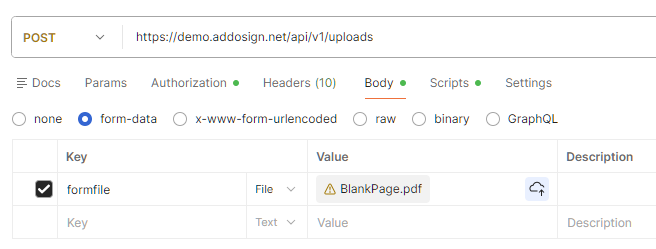
Pay attention to the storageId. This will be used in the next call when creating the signing.
Create the signing
To create the signing, POST the request JSON to:
https://demo.addosign.net/api/v1/groups/1692/signings
1692 is our group id, it should be replaced with a group id from your account.
The full JSON to POST is presented below in all its glory – below the JSON a discussion of the properties will follow:
{
  "fileGroups": [
    {
      "id": 1,
      "name": "Contracts"
    }
  ],
  "files": [
    {
      "storageId": "20f913b9-f113-41cc-9a21-052372f68e7a",
      "isSigningRequired": true,
      "fileGroupId": 1
    }
  ],
  "recipientGroups": [
    {
      "id": 1,
      "name": "Special People"
    }
  ],
  "recipients": [
    {
      "name": "Brian Schau",
      "email": "brian.schau@xxx",
      "notificationMethods": [
        1
      ],
      "signingMethod": 2,
      "authenticationMethod": 0,
      "recipientGroupId": 1
    }
  ],
  "stages": [
    {
      "sequenceNumber": 0,
      "fileGroups": [
        {
          "fileGroupId": 1,
          "recipientGroupIds": [
            1
          ]
        }
      ]
    }
  ]
}
Visually, in Addo Sign, this is what our signing looks like:
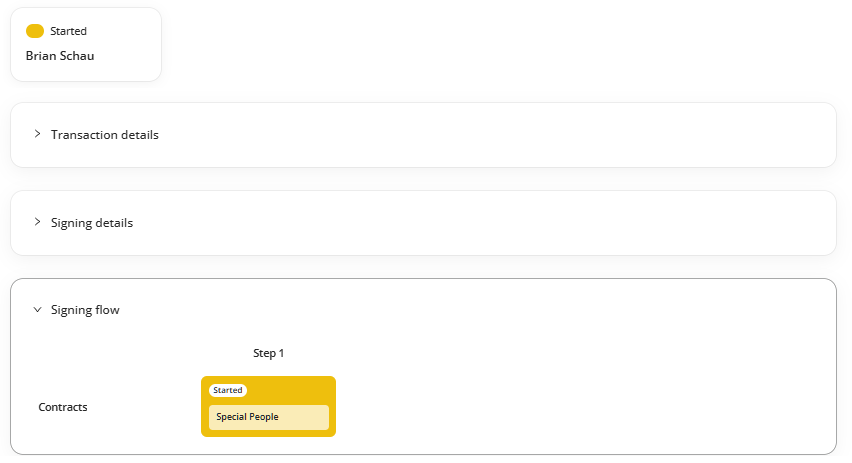
So, we have one FileGroup (ID #1, "Contracts") in step one (steps a.k.a. stages are counted from 0 in the api request, see stages property above). This Filegroup must be signed by a RecipientGroup (ID #1, "Special People"). This RecipientGroup contains one Recipient ("Brian Schau"). The recipient will receive notification to sign the document through email ("notificationMethods": [1]) he will be allowed to sign without authenticating ("authenticationMethod": 0) and will have to sign the document using touch signature ("signingMethod": 2).
The fileGroups property defines the groups of files that need to be signed (or approved). Not shown here is that each group takes an order property so signers can see the files in the order you desire. Lower numbers bubble to the top.
The files property contains links (through the storageId) to all the files in this signing. A file can only be in one Filegroup. storageId for a file cannot be shared. The isSigningRequired controls if the file must be signed or if it is a non-signable attachment.
The recipientGroups property defines the RecipientGroups. They are used to assign recipients to file groups.
The recipients property defines information about all recipients in the signing.
Last we have the stages property. It is a list of stages, each stage containing one (or multiple) file groups that must be assigned to one (or multiple) recipient groups.
The result of the above Create Signing request was:
{
  "token": "0b5186cc-3265-41d1-a538-d1901b60ad41",
  "id": 158034
}
Fetch the signed file
When the signing completes, it will be time to fetch the signed file.
First, you will have to get the file id that Addo has created. To do that, first call List signing files:
https://demo.addosign.net/api/v1/signings/158034/files
You will receive a response similar to this:
[
  {
    "id": 80260,
    "name": "BlankPage.pdf",
    "fileGroupId": 33694,
    "fileGroupName": "Contracts",
    "isCompleted": true,
    "requireSigning": true,
    "metadata": null
  }
]
Next, you will have to use the Download signing file endpoint to download the document:
https://demo.addosign.net/api/v1/signings/158034/files/80260/data
The two numbers are:
158034: the id from the response to the Create Signing endpoint (as seen above), and80260: the id from the response to the List signing files endpoint above.
You can only download the signed file when the signing has completed. To get signing details, use the Get Signing Details endpoint:
https://demo.addosign.net/api/v1/signings/158034
(Pssst! 158034 is the id mention above).
You will get a lot of details from this call. When the signing has completed it's state will be 3.
Another way to learn about when the signing has completed is by listening to a callback from us. Add this property to the root of your request:
{
  "callbacks": [
    {
      "url": "https://google.com",
      "type": 1
    }
  ]
}
The "type": 1 is the Distribution (former Completed) callback. When Addo Sign is about to send out the signed file, we will call you instead. Then you fetch the file(s) as described above.
Sender Information
When Addo Sign sends out an e-mail to the recipient, the sender information displayed will be set according to the information of the user sending the signing. If you want to override that, you can add senderDetails to the root of your request:
{
  "senderDetails": {
    "name": "John Doe",
    "companyName": "The Good Hearted Company",
    "email": "johnd@localhost",
    "phone": "+4512345678"
  }
}
Please note, the email above is purely for presentation purposes. The actual from e-mail will be no-reply@addosign.net.
Everything in one file
{
  "fileGroups": [
    {
      "id": 1,
      "name": "Contracts"
    }
  ],
  "files": [
    {
      "storageId": "c1b5ba2e-a1a0-4e93-8bcb-8bb96d632d3b",
      "isSigningRequired": true,
      "fileGroupId": 1
    }
  ],
  "recipientGroups": [
    {
      "id": 1,
      "name": "Special People"
    }
  ],
  "recipients": [
    {
      "name": "Brian Schau",
      "email": "brian.schau@xxx",
      "notificationMethods": [
        1
      ],
      "signingMethod": 2,
      "authenticationMethod": 0,
      "recipientGroupId": 1
    }
  ],
  "stages": [
    {
      "sequenceNumber": 0,
      "fileGroups": [
        {
          "fileGroupId": 1,
          "recipientGroupIds": [
            1
          ]
        }
      ]
    }
  ],
  "callbacks": [
    {
      "url": "https://google.com",
      "type": 1
    }
  ],
  "senderDetails": {
    "name": "John Doe",
    "companyName": "The Good Hearted Company",
    "email": "johnd@localhost",
    "phone": "+4512345678"
  }
}
Creating a signing without using stages
If you are not interested in features stages provide, f.e. sequential signing, sender notes, etc. you can instead leave stages property unset.
Warning
Do not set stages to null, instead just omit it from the request. The default value for the property is an empty array "stages": [], setting it null overrides the default and leads to an error.
When left unset, the mapping will default to a single stage with each recipient group assigned to all file groups. The following request will result in a single stage with a single file group being signed by a single recipient group.
{
  "fileGroups": [
    {
      "id": 1,
      "name": "Contracts"
    }
  ],
  "files": [
    {
      "storageId": "64db7607-fd80-4520-9bce-06d56f0281af",
      "isSigningRequired": true,
      "fileGroupId": 1
    }
  ],
  "recipientGroups": [
    {
      "id": 1,
      "name": "Special People"
    }
  ],
  "recipients": [
    {
      "name": "Brian Schau",
      "email": "brian.schau@xxx",
      "notificationMethods": [
        1
      ],
      "signingMethod": 2,
      "authenticationMethod": 0,
      "recipientGroupId": 1
    }
  ]
}
Because the value 0 is a valid mapping id value and is the default value for file and recipient group id fields, the request can be further simplified to the following:
{
  "fileGroups": [
    {
      "name": "Contracts"
    }
  ],
  "files": [
    {
      "storageId": "126144e7-80eb-492b-82fb-d8fbc6ad1717",
      "isSigningRequired": true
    }
  ],
  "recipientGroups": [
    {
      "name": "Special People"
    }
  ],
  "recipients": [
    {
      "name": "Brian Schau",
      "email": "brian.schau@xxx",
      "notificationMethods": [
        1
      ],
      "signingMethod": 2,
      "authenticationMethod": 0
    }
  ]
}